

Useful keys to remember
Lorem ipsum dolor sit amet, consectetur adipiscing elit. Nullam tempor arcu non commodo elementum.
What do I do if I crash and lose my data?
The software create a text back up of your data, so in the event of a crash, you should be able to import it.
If you accidentally clear data before you have run your report, the same process may well save the day.
How do I troubleshoot non-responsive/dead keypads?
Check the keypad low and high numbers are correctly entered in Setup screen, use the test keypad function, and ensure all keypads are within the receiver’s range.
Use the link below for detailed trouble shooting. It's usually possible to diagnose and fix your keypad issue instantly by following the instructions. If reporting a keypad failure to the support team, please include whether the keypad lights up at all, and whether it shows the number you pressed or whether the LED circles and then shows a t.
How do I resolve the issue when I get a message that says the ppvote controller failed to fully initialize?
Every time you open PowerPoint, it will try to trigger the CLiKAPAD add-in software (ppvote). If you see that message, close PowerPoint and open it again. That usually prompts it to fully initialize. If that doesn't work, reboot the laptop.
This error is most commonly seen when the laptop is left to sleep over night rather than being shutdown between uses.
Why doesn't the voting start automatically when I show a question slide?
First, check that you don't already have data on the slides. If the slide is showing a previous result, the voting will not open. You need to clear the data before starting each course. Don't worry if you are unsure whether you already cleared. Do it again and if there is data you can clear it. If there is no data, it will show a message saying there is no live data, so that confirms that it is cleared.
If there is no data on the slides, go to Add-ins > CLiKAPAD and check that there is a tick next to Auto launch votes. Click that item if there is no tick and that update the setting, so that when you show a voting slide, the vote will open automatically.
If ever votes don't launch automatically, you can press V to manually start the vote.
No votes are being received, the keypads just show a t not the number that people press
When you present the first voting slide, does the white box that counts up the votes coming in appear but say a zero in it? If no, go to the Section that says "Why doesn't the voting start automatically when I show a question slide?"
If yes, it's possible that there is an issue with your receiver. Go to the keypad set up screen and run the test, to ensure that the hardware is working. If not, please reboot the computer and try again. If that doesn't resolve the issue visit this page for more help: https://knowledge.clikapad.com/why-cant-my-keypads-send-votes
Why are there no columns, to show WJA number etc in my Excel report?
If the report exports fine and you can see the trainees scores but you are missing the columns to add the rest of the information to, it will be because there is no ppvote Participant List in the folder where the presentation is saved.
Store your training presentation and ppvote Participant List together in a local folder (not on a network or cloud service). Avoid using One Drive backed up folders such as Desktop and Documents. We recommend you save all your courses in a folder that is directly on the main drive (usually C drive). For ease of access you could use a desktop shortcut to that folder.
The participant list must not be renamed in any way. The file name should be ppvote Participant List. If this has been changed,the software will not longer be able to link to it.
If you don't have a copy of the ppvote Participant List in one of your other course folders that you can copy to the folder for the course that you are having issues with, download a new copy of the WJA participant list by clicking here.
Once downloaded, save it to the same folder as your presentation and try running the export again. Remember that if this and the presentation are in different sub folders, it will not work. When you have the folder open in File Explorer, you should be able to see both files without moving to a new folder.
PowerPoint keeps hanging/crashing when I am running a course. Why does this happen and what can I do?
The courses a large files due to the number of embedded videos.
Each time that you close a vote, the voting software sends a command to PowerPoint to save the file. This means that all voting data so far will be saved. Should you then have a technical failure or need to exit the presentation for any reason, the data is already saved and you can simply continue from where you left off. Always check that you can see the results from you most recent vote prior to moving on though.
As the files are large, they can take a very long time to save depending on how fast/powerful your laptop is. Sometimes this can even cause PowerPoint to crash.
In the event of a failure, it is usually possible to import the voting data from a back up file rather than making trainees vote again. For more guidance, contact support@clikapad.com
There are three approaches to preventing crashing and/or freezing:
1. Buy a better laptop! This is a costly and not very practical solution but may very well improve the performance of PowerPoint and all other applications.
2. Use presentations that use linked videos rather than embedded ones. This will massively reduce the file size. There are lots of Microsoft resources and Google is your friend! At the time of writing, this page gives great instructions for inserting videos.
3. Turn off the automatic saving in the voting software. This is not ideal but will improve performance if PowerPoint is struggling to save files. Be CAREFUL. By turning this off, you are telling PowerPoint not to save after each vote. This means that if you crash none of the changes will be saved. The voting data being added is a change to the PowerPoint file, so will be gone. It is often (but not always) possible to to retrieve the data from a back up file. There may not be anyone available to assist you at the time that it happens. If you are running with auto save turned off, you must save your presentation at every break to protect the data up to that point. You should also consider learning how to import from a back up if you need to do so mid course. This video explains how to turn of the auto save. The simple instructions are:
To set the auto save preference go to Add-ins > CLiKAPAD > Help > Debug settings.
The second to last tick box says Disable PowerPoint save after vote closes. Ticking that box turns off the automatic saving and unticking it will turn it back on. Click OK once you have made the change.
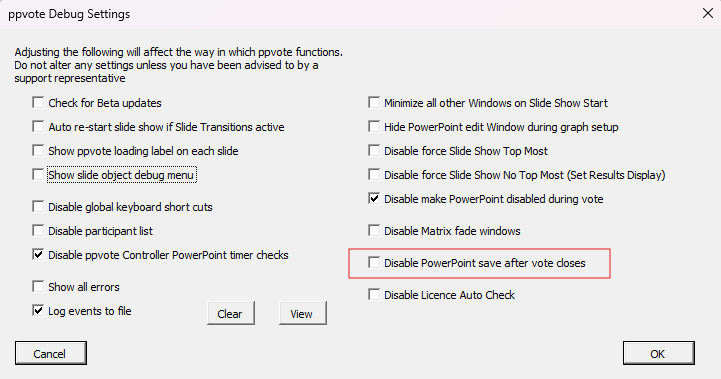
We strongly recommend that you address the core issue of the files crashing and you use switching off the automatic saving as purely a temporary fix.
What is my licence key?
The WJA license key is 2205030500.
This is the number that all WJA trainers need to use, as it is a central licence.
How do I move the software to a new computer?
Your licence is not limited to a number of devices, so there is no need to remove it from your old computer. Just install, activate the licence and save all your files to the new computer.
Remember, we recommend saving your files outside of One Drive to avoid syncing issues. Desktop and Documents are normaly One Drive synced, so create a new folder, saved directly to the harddrive (usually C:) and store your courses there, along with your ppvote Participant List (the file that generates the WJA columns).
To download the software click here. This will start a download straight away rather than opening a web page. When you run the installer you will need to be logged in with Admin rights. When the software has successfully installed, it doesn't create a new program for you to open. It simply adds a menu within PowerPoint called Add-ins and under that you will find the CLiKAPAD menu.
The WJA licence key is 2205030500. To activate your license, follow these steps.
1. Load PowerPoint and select the CLiKAPAD menu from the Add-ins tab > About v5.2 > Register > Retrieve Licence.
2. Enter your email address and the above licence number.
3. Click the "Online Licence" button.
4. You will be prompted to confirm this is the correct license.
5. Once confirmed click the "Activate" button to apply the license.
Finally, set up your voting equipment and test the keypads to ensure that everything is functioning correctly. We also suggest you try exporting a report, to ensure that your computers link to Excel is working fully and that the software can add the WJA custom columns to the report.
I advanced too quickly and am showing the correct answer before I have run the vote. What can I do?
The correct answer is just a PowerPoint animation. It does not have a connection to the vote itself.
Click the left arrow on your keyboard to stop the vote and click it again to remove the animation of the correct answer.
Then click V on the keyboard to re-open the vote.
How can I clear previous results before a live session?
On the PowerPoint for your course, go to the CLiKAPAD menu, select Voting Results, then Clear Data / Reset to remove test data from your presentation before use.
Where can I find information about error messages?
Click here for error message information.
If you cannot find information about the error that you are seeing, use the form at the top of the page. You can also upload a picture of the error if you take a screenshot.
Please also give some detail about when the error occurred.
The scoring is wrong on one or more of the questions
If the trainees answer a question correctly but do not get allocated a point for that question, it means the back end settings of the slide do not match what is shown on that slide.
If you have not amended the slide or settings, you must report this to WJA in case the file has been issued to other trainers with the same error.
The most likely cause is that someone has changed the order of the answer options. The highlighting of the correct answer on the slide is just PowerPoint animations and does NOT affect the scoring. When the options get amended, the scoring must be edited to match.
To fix the version that you have, so that you can run your report, go to the slide and then Add-ins > CLiKAPAD > Slide Editor. Choose the Quiz Settings tab and click next to the correct answer option. The cell will turn green and one point will be allocated. Now click on the green cell next to the one that was previously marked as correct but should not be. It will turn red. Click a second time and it will turn white. Then click Save & Go at the bottom of the window.
Once you have made the correction, run a report and check that all scoring is correct.
What equipment do I need to run CLiKAPAD for WJA courses?
You’ll need a CLiKAPAD base station, keypads, a USB cable, and a computer with PowerPoint and ppvote software installed. No WiFi is required for in-room voting.
Can I buy additional/replacement keypads?
Yes, you can purchase additional full systems or individual items such as a replacement keypad or receiver. Use the form at the top of the page or email sales@clikapad.com.
Can I use the keypads for my other courses or only WJA ones?
The WJA welcomes you to use your keypads for other courses, meetings, or even fun interactive quizzes. You’ll find step-by-step guidance on creating voting slides in our knowledge base. If you’d like personalised training, you can book a session with us—please note this is a chargeable service and not covered by the WJA. If you need ready-made slides, get in touch for a custom quote.
Click here for more information
What is the hardware warranty?
CLiKAPAD systems include a 2-year return-to-base warranty. If your product develops a fault within two years of delivery, simply complete the form above. We’ll guide you through troubleshooting steps to resolve configuration issues. If the problem can’t be fixed remotely, we’ll let you know how to return the item—please wait for instructions before sending anything back. We’ll repair or replace faulty items and return them to you free of charge. Any replacement will be covered until the original warranty period ends.